
LinkedIn Carousel Size Guide 2026: Dimensions, Format & PDF Export

Generate a LinkedIn carousel on this topic in 2 minutes
10 free credits to start
You uploaded a carousel to LinkedIn. The slides got cropped. The text feels small on mobile. The PDF was rejected because it was too heavy. Sound familiar?
LinkedIn carousels generate the highest engagement rate of any format on the platform in 2026, at 7.00% on average versus 5.20% across all post types. But if your dimensions are wrong, you lose half that performance before anyone reads the first slide.
This guide gives you the exact 2026 specs: dimensions, file format, page count, file size, mobile safe zones, and step-by-step export instructions for every major tool. No fluff, just the numbers that matter.
TL;DR: The right LinkedIn carousel size in 2026
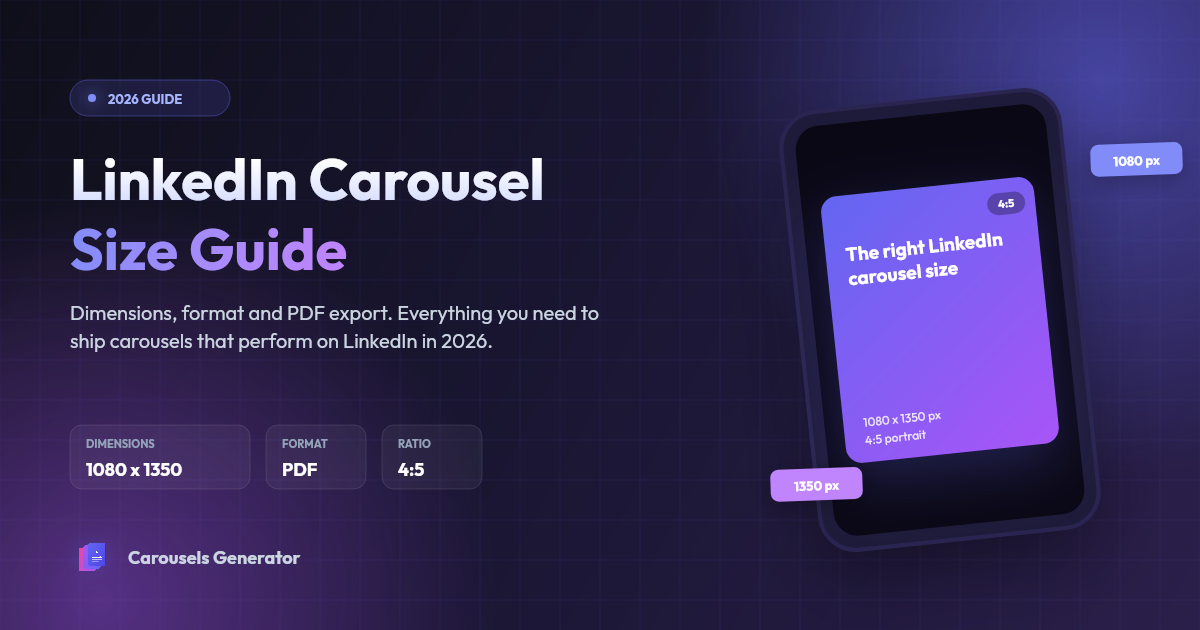
- Dimensions: 1080 x 1350 pixels (4:5 portrait ratio)
- File format: PDF (uploaded as document post)
- Max file size: 100 MB (target under 10 MB)
- Max page count: 300 slides (optimal: 7 to 12)
- Color space: RGB (not CMYK)
- Mobile safe zone: 50 to 80 px clear at top and bottom of each slide
If you only remember one thing: 1080x1350 PDF, 8 to 10 slides, under 10 MB.
What is a LinkedIn carousel post?
A LinkedIn carousel is a multi-slide post built from a PDF document. Each page of the PDF becomes one swipeable slide in the feed. Unlike Instagram carousels, which are sequences of images, LinkedIn carousels are technically document posts ("native documents") rendered slide-by-slide.
This distinction matters for sizing. On Instagram, you upload images. On LinkedIn, you upload one file that contains all slides. The dimensions you choose at the design stage are baked into the PDF and cannot be changed afterwards.
For a deeper dive on creating carousels from scratch, see our step-by-step guide to creating LinkedIn carousels with AI.
LinkedIn carousel dimensions in 2026 (table of reference)
LinkedIn supports three aspect ratios for document carousels. Here is how they compare:
| Ratio | Dimensions (px) | Use case | Mobile screen coverage |
|---|---|---|---|
| 4:5 portrait | 1080 x 1350 | Recommended for LinkedIn-first content | ~80% |
| 1:1 square | 1080 x 1080 | Cross-posting from Instagram | ~65% |
| 16:9 landscape | 1920 x 1080 | Desktop presentations | ~40% |
The 4:5 portrait format is the data-backed choice for one reason: it dominates the mobile feed. The taller the slide, the longer it stays on the screen as the user scrolls, and the longer it stays, the higher the dwell time. LinkedIn's algorithm uses dwell time as one of its strongest distribution signals in 2026.
Note: 1080x1080 (1:1 square) is also the required size for LinkedIn carousel ads (paid). For organic document posts, you have full control over the ratio, and 4:5 wins on engagement.
Why 1080x1350 is the optimal size
In 2026, 67% of LinkedIn traffic comes from mobile devices. Mobile users scroll vertically through the feed, which means vertical space equals attention.
Here is what changes between formats on a 6.1-inch phone screen:
- 4:5 portrait (1080x1350): takes up roughly 80% of the vertical screen. Reader has to swipe up actively to scroll past.
- 1:1 square (1080x1080): takes up roughly 65% of the screen. Reader can see the slide AND the next post header simultaneously, which makes scrolling away easier.
- 16:9 landscape (1920x1080): takes up roughly 40% of the screen. Reader sees three other posts on the same view, attention is fragmented.
The 25% extra vertical space of 4:5 versus 1:1 is what turns a passive scroll into an active swipe. It is the most underrated lever in LinkedIn carousel performance.
LinkedIn carousel file specs
Every LinkedIn document post must respect these technical limits:
| Specification | Value |
|---|---|
| File format | PDF (recommended), PPTX, DOC, DOCX |
| Max file size | 100 MB |
| Max page count | 300 |
| Color space | RGB (CMYK breaks rendering) |
| Font handling | Embed fonts in PDF |
| Recommended file size | Under 10 MB |
Why under 10 MB matters: heavy files load slowly on mobile data. If your carousel hasn't rendered by the time someone scrolls past, you've lost them. The first three seconds determine whether a user starts swiping or moves on.
Why PDF over PPTX: PowerPoint files (.pptx) render inconsistently across LinkedIn's mobile and desktop apps. Fonts get substituted, layouts shift, animations are stripped. PDF freezes everything in place. Always export to PDF before uploading.
How many slides should a LinkedIn carousel have?
Data from a 1.3 million post analysis published in the 2026 Socialinsider LinkedIn Benchmarks Report shows a clear sweet spot:
| Slide count | Avg. engagement rate | Completion rate |
|---|---|---|
| 3 to 5 slides | 4.2% | 78% |
| 7 to 10 slides | 6.8% | 65% |
| 11 to 15 slides | 5.9% | 48% |
| 16+ slides | 4.1% | 32% |
The sweet spot is 7 to 10 slides. Long enough to deliver real value and generate dwell time, short enough to maintain a high completion rate. Below 5 slides, the algorithm sees a low-substance post and caps reach. Above 15 slides, drop-off compounds and partial swipes are read as a weak signal.
If your topic genuinely needs more than 12 slides, split it into a series instead of one long carousel. You will get more total dwell time across two posts than one bloated carousel.
Ready to put this into practice?
Carousels Generator handles the text and design from a single prompt. Start with 10 free credits.
Mobile safe zones: what to avoid clipping
LinkedIn overlays UI elements on top of every carousel slide on mobile. If your design extends edge-to-edge, parts of your content get hidden.
Safe zones to respect:
- Top edge: leave 50 to 80 px clear. The author name and post text overlay this area on mobile.
- Bottom edge: leave 50 to 80 px clear. The slide counter (1/8, 2/8...) and navigation dots sit here.
- Sides: 40 to 60 px of margin to handle different screen widths and rounded phone corners.
If you place your headline in the top 80 px or your CTA in the bottom 80 px, half your audience will never see it. This is the most common mistake we see when reviewing carousels exported from generic design tools.
Step-by-step: export a LinkedIn carousel in the right format
Here are the three most common workflows, ranked by speed.
Method 1: Carousels Generator (under 2 minutes)
- Sign up for a free account at carousels-generator.com (10 free credits, no credit card)
- Type a prompt describing your carousel topic
- The AI generates the full carousel (text + design) in 1080x1350 PDF format automatically
- Click Export → PDF
- The file downloads ready to upload to LinkedIn
The format is locked at 1080x1350, the file size is optimized below 10 MB, fonts are embedded, color space is RGB, and safe zones are respected. Zero configuration required.
Method 2: Canva (15 to 30 minutes)
- Open Canva and click Create a design → Custom size
- Enter 1080 x 1350 pixels, click Create
- Design each slide manually (typography, layout, branding)
- Add as many pages as needed (Canva supports unlimited pages)
- Click Share → Download
- Choose File type: PDF Standard
- Important: under "Color profile", select RGB (not CMYK, which breaks LinkedIn rendering)
- Click Download
Common Canva pitfalls:
- Default canvas is 1080x1080 (square), you must explicitly set 1080x1350
- Free plan exports include the Canva watermark unless you upgrade
- "PDF Print" exports in CMYK by default, always pick "PDF Standard"
Method 3: PowerPoint or Google Slides (20 to 40 minutes)
The default slide size in PowerPoint and Google Slides is 16:9 landscape. You must change it before designing.
In PowerPoint:
- Go to Design → Slide Size → Custom Slide Size
- Set width to 11.25 inches, height to 14.06 inches (this maps to 1080x1350 px at 96 DPI)
- Design your slides
- File → Export → Create PDF/XPS
- Save with quality set to "Standard"
In Google Slides:
- Go to File → Page setup
- Select Custom, enter 11.25 x 14.06 inches
- Click Apply
- Design your slides
- File → Download → PDF Document
PowerPoint and Google Slides handle PDF embedding well, but font rendering can shift if your design uses non-standard fonts. Stick to system fonts (Arial, Helvetica, Inter, Roboto) or embed your custom fonts in the PDF.
5 common LinkedIn carousel mistakes to avoid
- Uploading individual images instead of a single PDF. LinkedIn does support image carousels, but they get less reach than document posts. Always upload one PDF.
- Using 1:1 or 16:9 by default. Most design tools open in square or landscape. You lose 25% to 50% of mobile screen real estate. Always set 1080x1350 first.
- Text smaller than 24 px. On a 4-inch mobile preview, anything below 24 px body text and 32 px headlines becomes unreadable. Test on your phone before uploading.
- PDF exported in CMYK color space. CMYK is for print. LinkedIn renders in RGB. CMYK files display with washed-out or shifted colors, sometimes refused entirely.
- File over 100 MB or close to it. Even if accepted, heavy files load slowly. Aim for under 10 MB. Compress images before importing them into your design.
How to upload your carousel on LinkedIn
Once your PDF is ready, use this checklist together with our step-by-step LinkedIn carousel publishing guide to validate the document title, caption, preview, and live post:
- Open LinkedIn and click Start a post (top of feed or your profile)
- Click the document icon in the post toolbar (sometimes shown as "Add a document")
- Upload your PDF file (max 100 MB)
- Add a document title (this appears above the carousel slides as a header, keep it short and benefit-driven)
- Write your caption: hook in the first 210 characters (mobile shows "see more" after that), then context, then a clear CTA
- Add 3 to 5 relevant hashtags at the end
- Click Post
If you have a Carousels Generator account, you can skip the manual upload entirely. The Direct Publishing feature connects your LinkedIn account via OAuth and publishes the carousel for you with an AI-generated caption. This is available on every plan, including Free, gated only by 3 to 5 credits per publication depending on the network.
Bonus: dimensions for cross-posting to other platforms
If you want to reuse the same carousel content across networks, here are the equivalent specs:
| Network | Recommended size | Format |
|---|---|---|
| 1080 x 1350 (4:5) | ||
| 1080 x 1350 (4:5) | JPG/PNG (multi-image) | |
| X / Twitter | 1080 x 1350 or 1200 x 675 (16:9) | JPG/PNG (up to 4) |
| Threads | 1080 x 1080 (1:1) | JPG/PNG |
| 1080 x 1350 (4:5) | JPG/PNG (multi-image) |
Carousels Generator handles cross-posting natively: you design once at 1080x1350, then Direct Publishing exports the right format for each network automatically. No manual resizing.
FAQ
Get the format right, every time
The right LinkedIn carousel size in 2026 is 1080 x 1350 pixels, PDF format, 7 to 12 slides, under 10 MB. Get those four numbers right and you've already done more than 80% of the creators on the platform.
Manual setup in Canva or PowerPoint takes 20 to 40 minutes per carousel. Carousels Generator does the design, export, and format compliance automatically in under 2 minutes, with the right dimensions baked in.
Try Carousels Generator free and get 10 free credits to publish your first carousel today.
Ready to create carousels like a pro?
Stop spending hours on each LinkedIn post. Let AI handle the text and design for you.
Popular LinkedIn carousel templates
Reuse in one click on your own topic. AI rewrites the text, keeps the design.